
To integrate WhatsApp into Odoo for improved communication, consider using the WhatsApp Business API or third-party modules. This enables features like automated messaging and customer interaction management within the Odoo 17 platform. Ensure compliance with WhatsApp Business API guidelines for a seamless integration.
The Odoo WhatsApp app facilitates seamless communication by enabling companies to connect a WhatsApp Business Account to their Odoo database, empowering them to receive and respond to WhatsApp messages directly within Odoo, create customisable templates with dynamic placeholders, and send pre-approved templates for various purposes such as sales quotations, receipts, invoices, and event tickets.
How to Configure WhatsApp in a Meta
A WhatsApp integration with Odoo uses a standard API connection and is configured on Meta in the following steps:
- Create a Meta business account
- Create a Meta developer account
- Setup an app and WhatsApp product on Meta’s developer console
- Test the API connection
How to setup a Meta Business Account
To create a Business account with Meta navigate to: Facebook Business Manager - https://business.facebook.com/overview
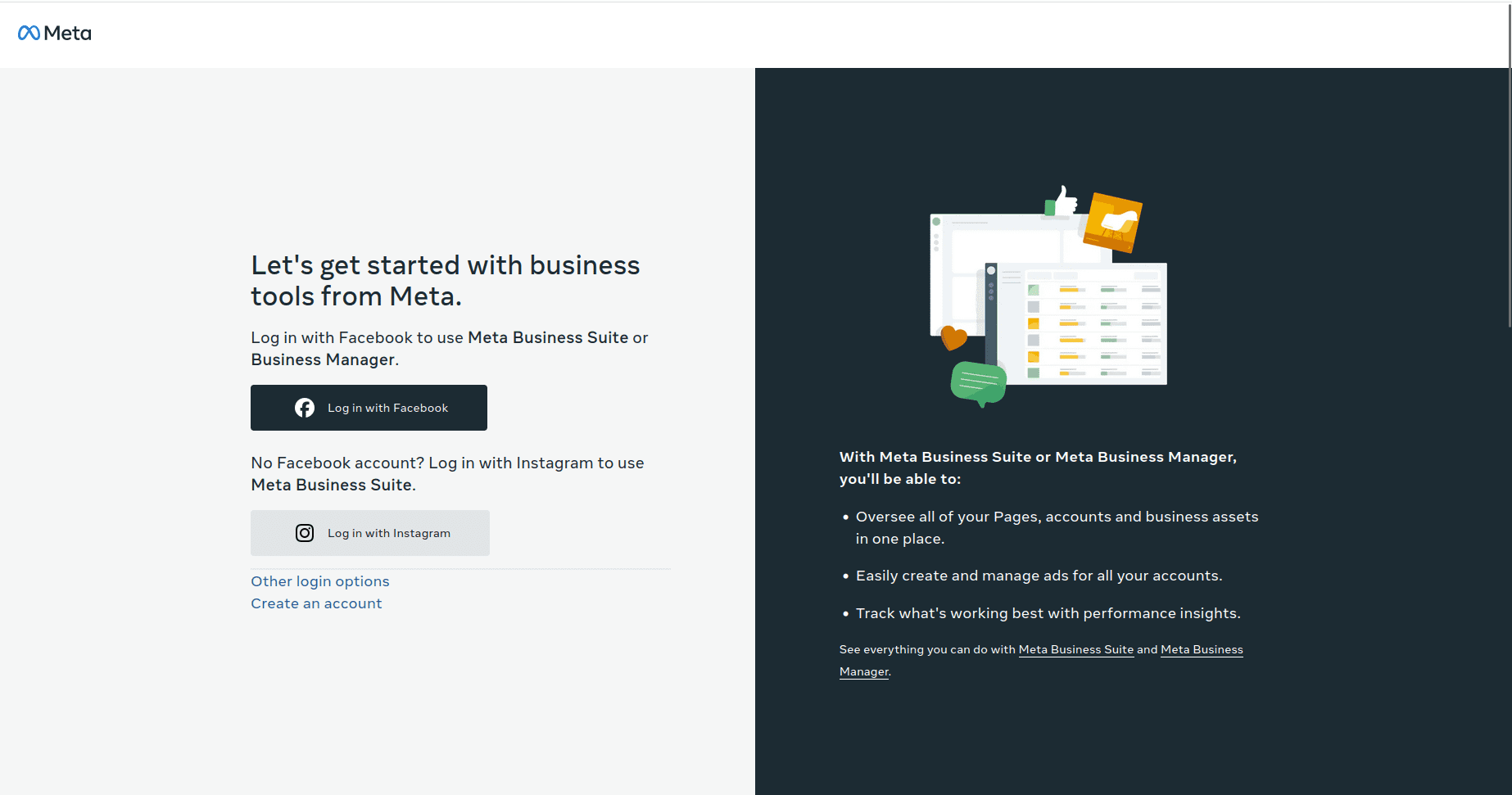
You can begin by clicking Create account, then entering the business name, the administrator’s name, and a work email address.
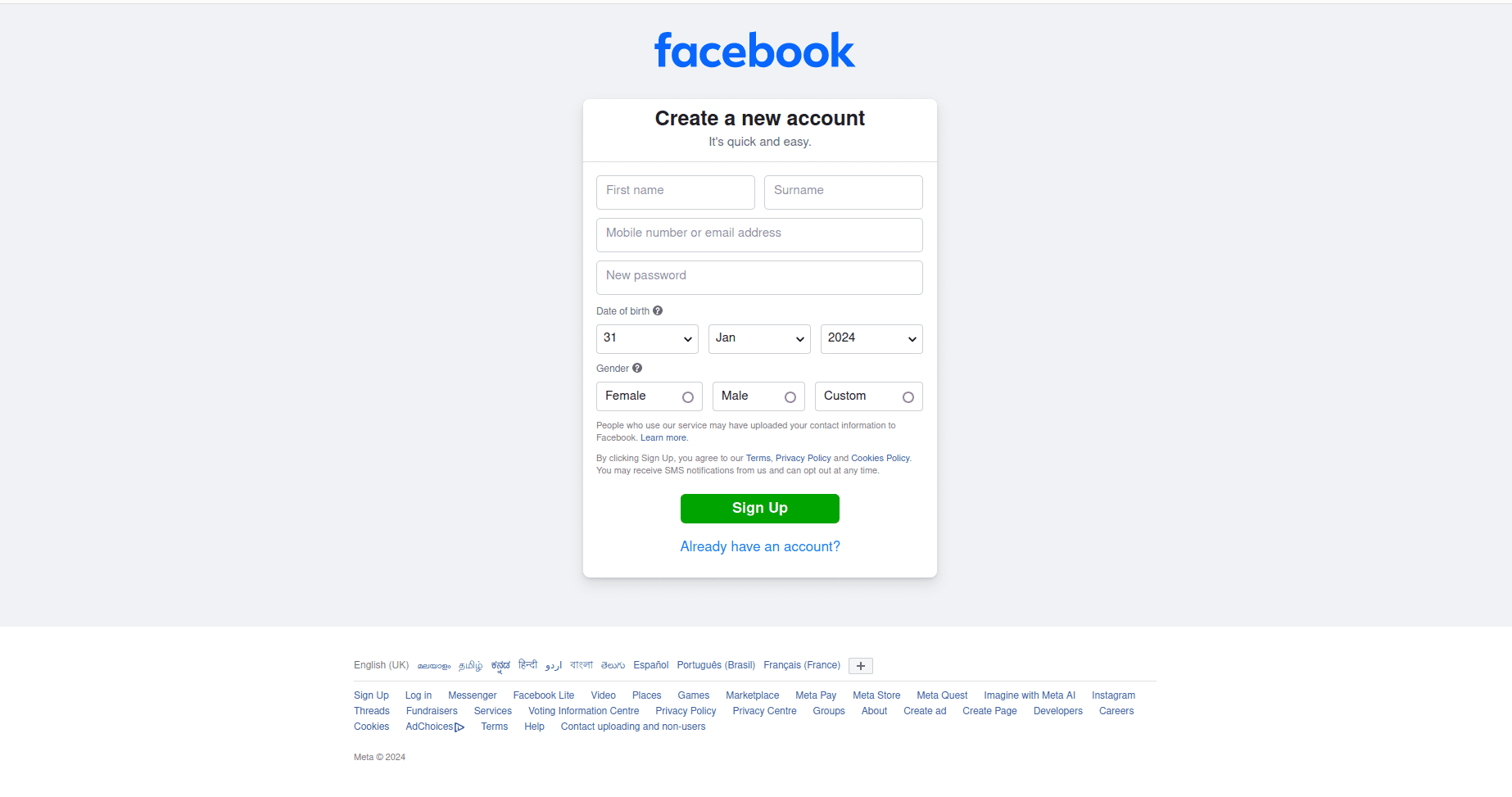
Then click Next, and a pop-up window will appear, prompting you to confirm the email address. After confirming, click Done to close the window.
Next, follow the instructions in the email sent by Facebook to confirm the creation of the business account and to complete the setup process.
Create a WhatsApp Business Account: https://www.facebook.com/business/help/1710077379203657?id=180505742745347
To establish a WhatsApp Business Account (WABA) for seamless integration with Odoo, follow these steps to configure your account settings and connect them to your Odoo database.
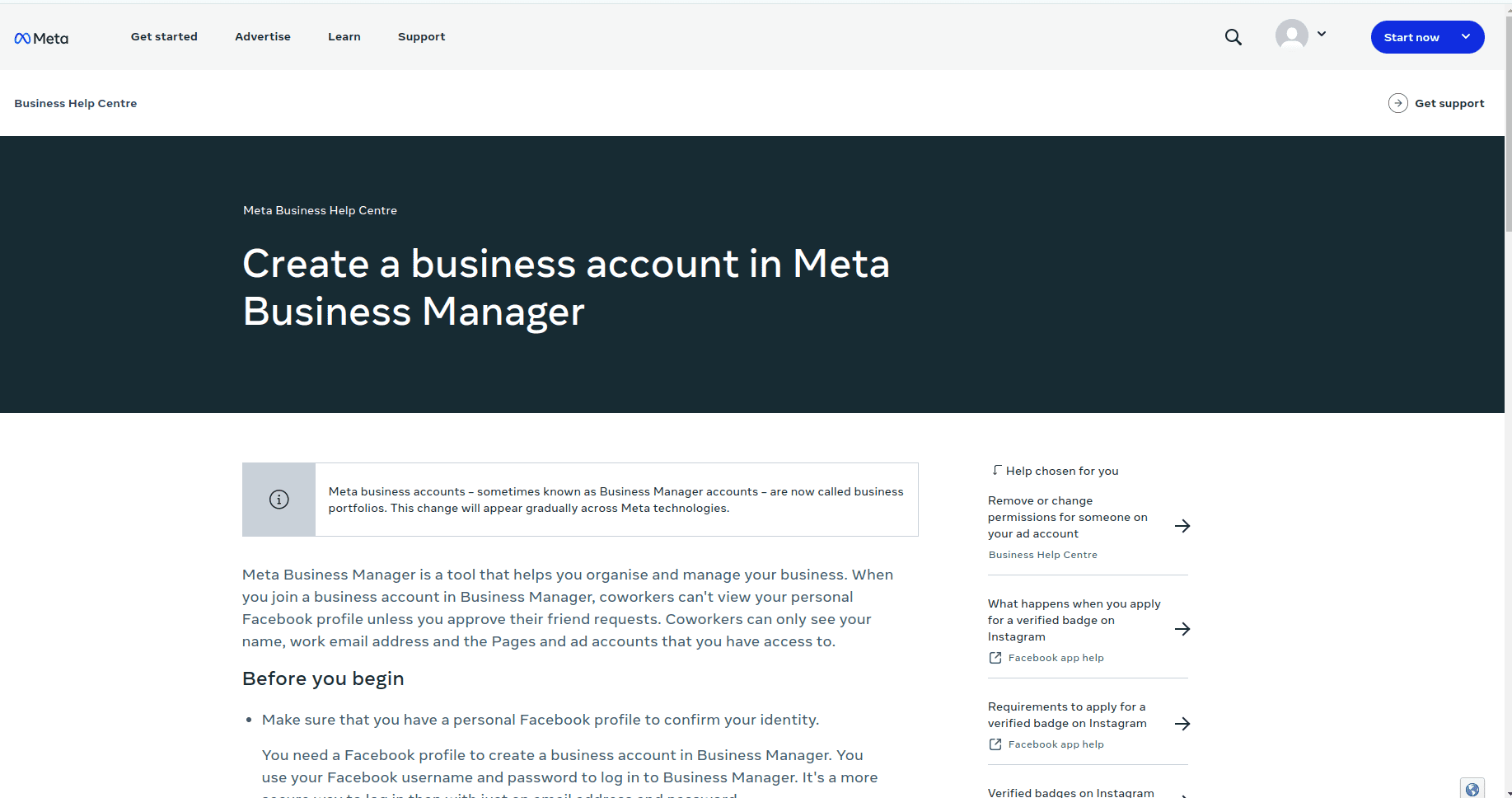
How to Create a Business Account
To create a business account in Business Manager:
- Go to https://business.facebook.com/overview
- Click Create an account.
- Enter a name for your business, your name and work email address, and click Next.
- Enter your business details and click Submit.
App creation
Meta for Developers Dashboard: https://developers.facebook.com/
Access the Meta for Developers dashboard and sign in with your Meta developer account. If you don't have an account yet, link a Facebook account to initiate creating one.
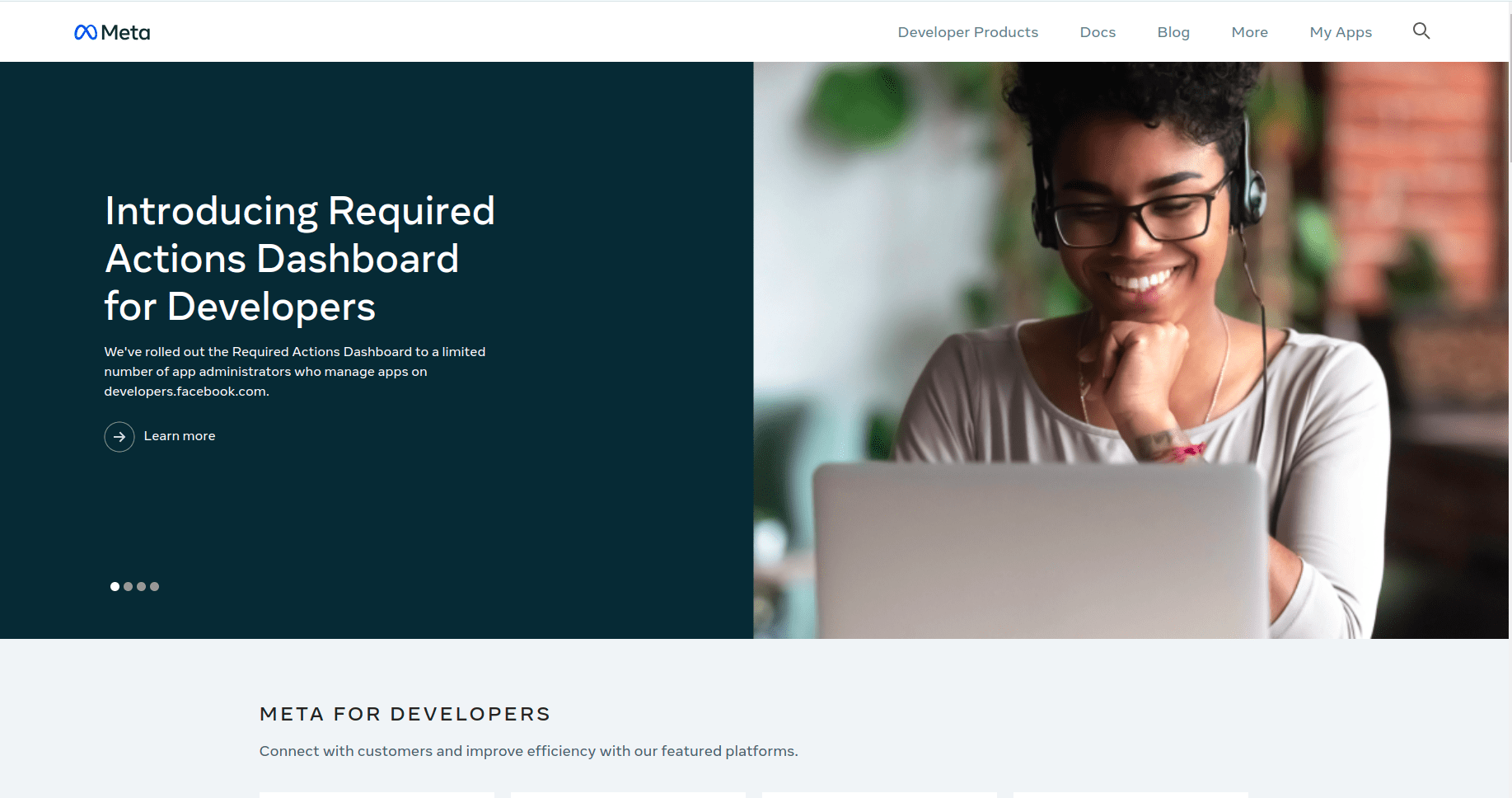
After successfully signing in to the Meta developer account, click on My Apps in the top right corner. This will redirect the administrator to all the apps the developer has configured in this specific developer account. Click on Create App to begin configuring a new Meta application.
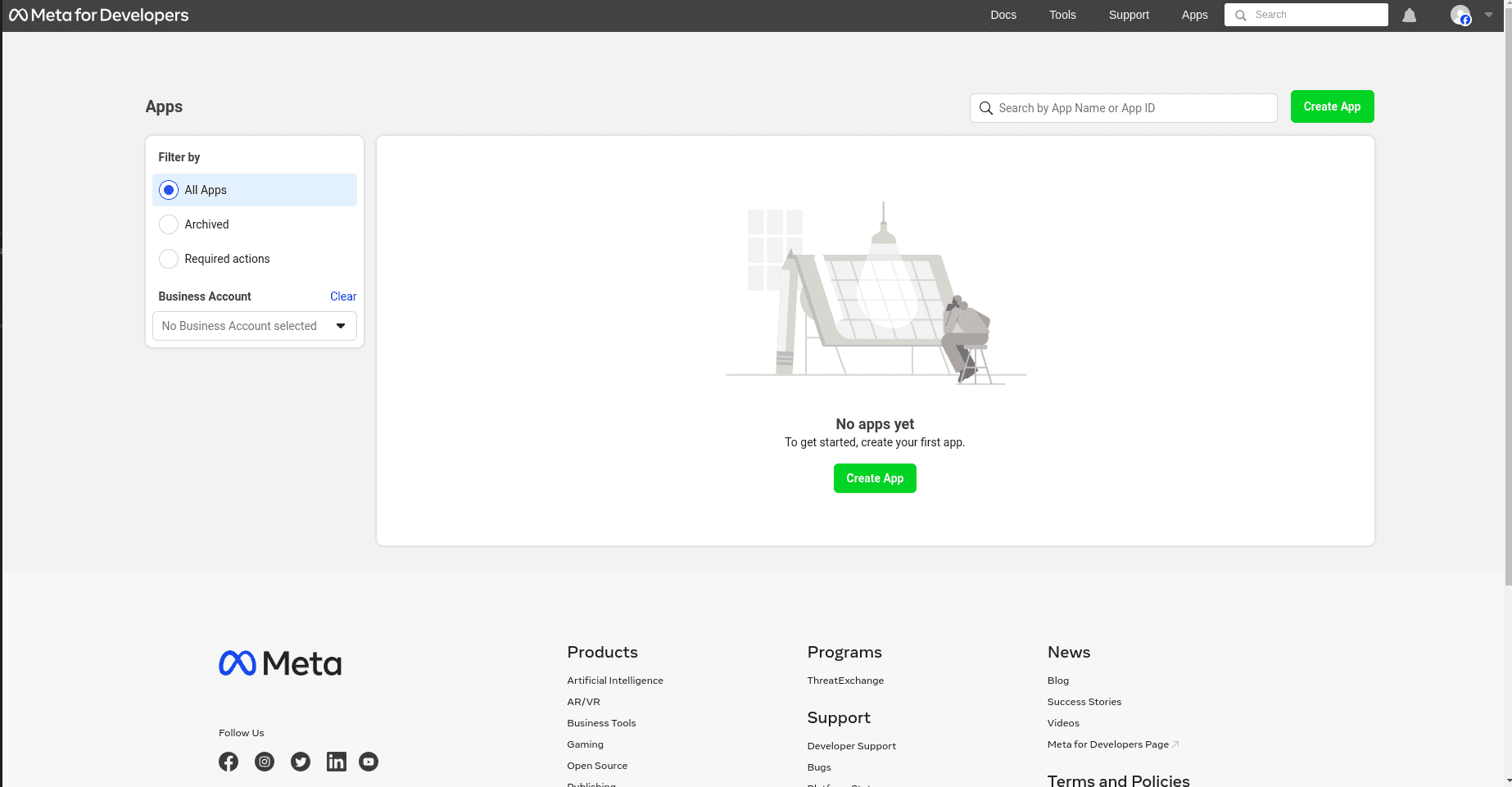
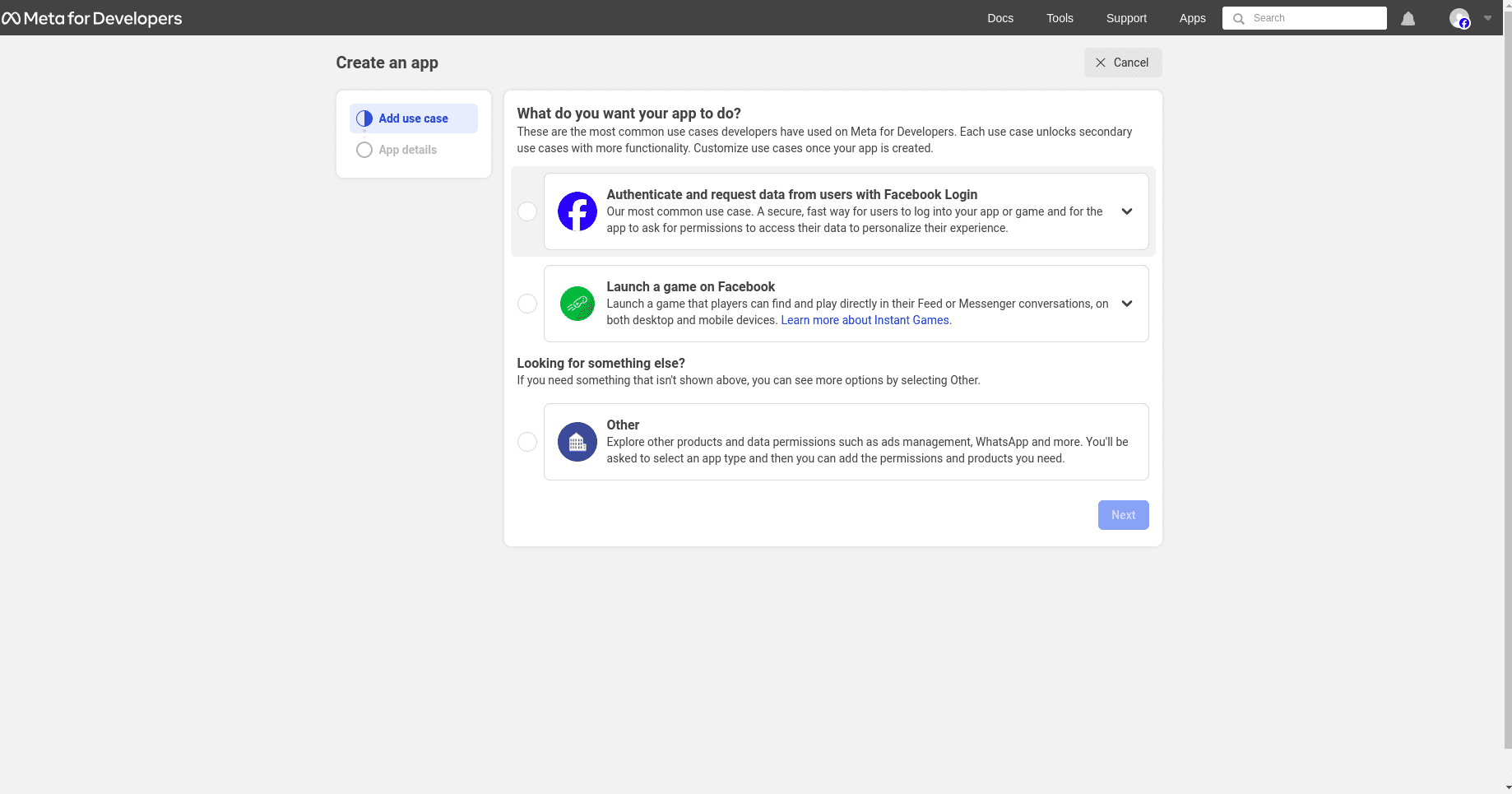
Navigate to the 'Other' option and proceed by clicking 'Next'.
App type
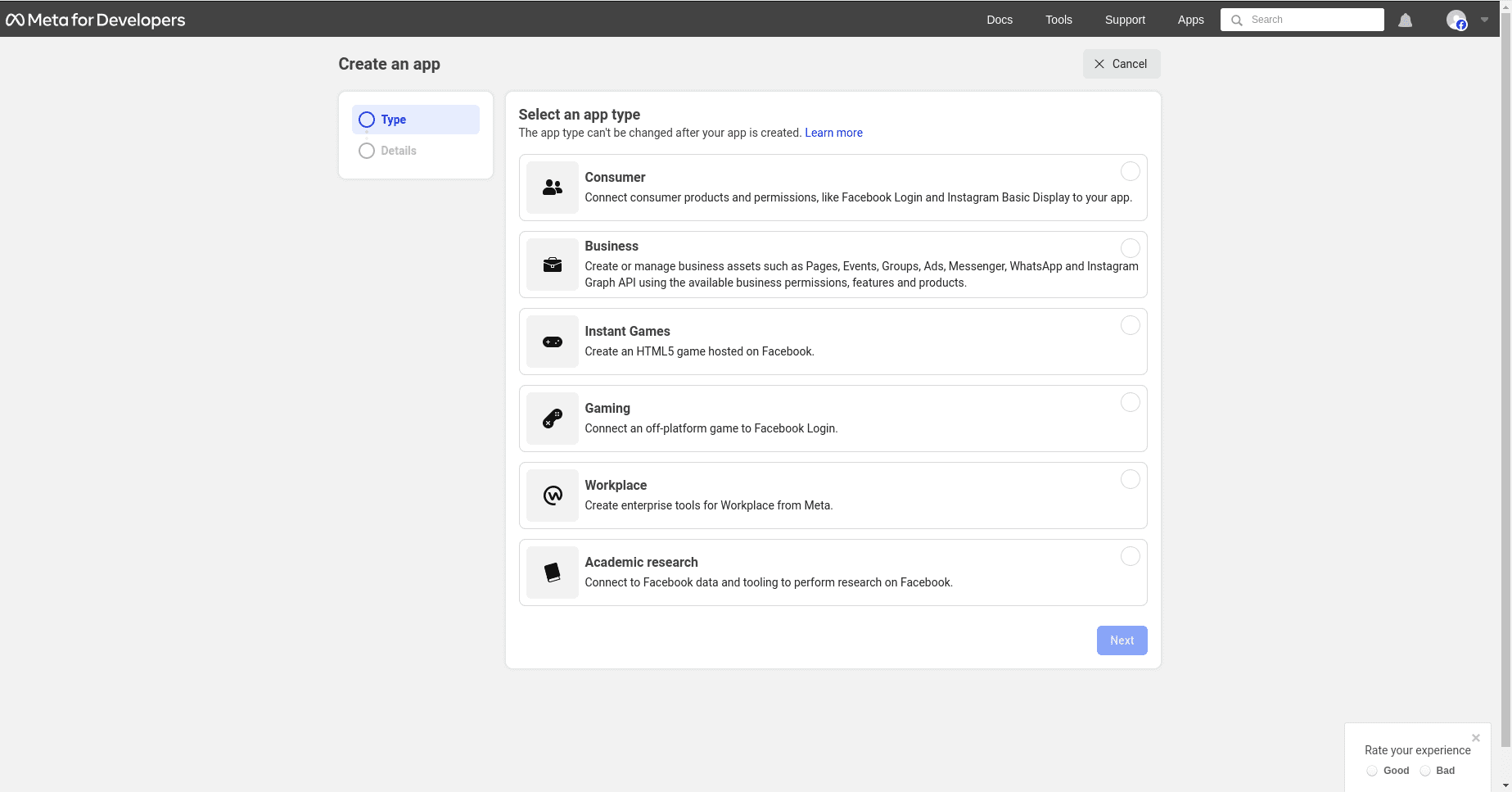
On the Create an App page, select Other under the section labelled, Looking for something else?, and then click Next to be directed to another page to select the app type. Then, click on the first option listed under the Select an app type label titled Business. This selection allows for the creation and management of the WhatsApp API.
App Details
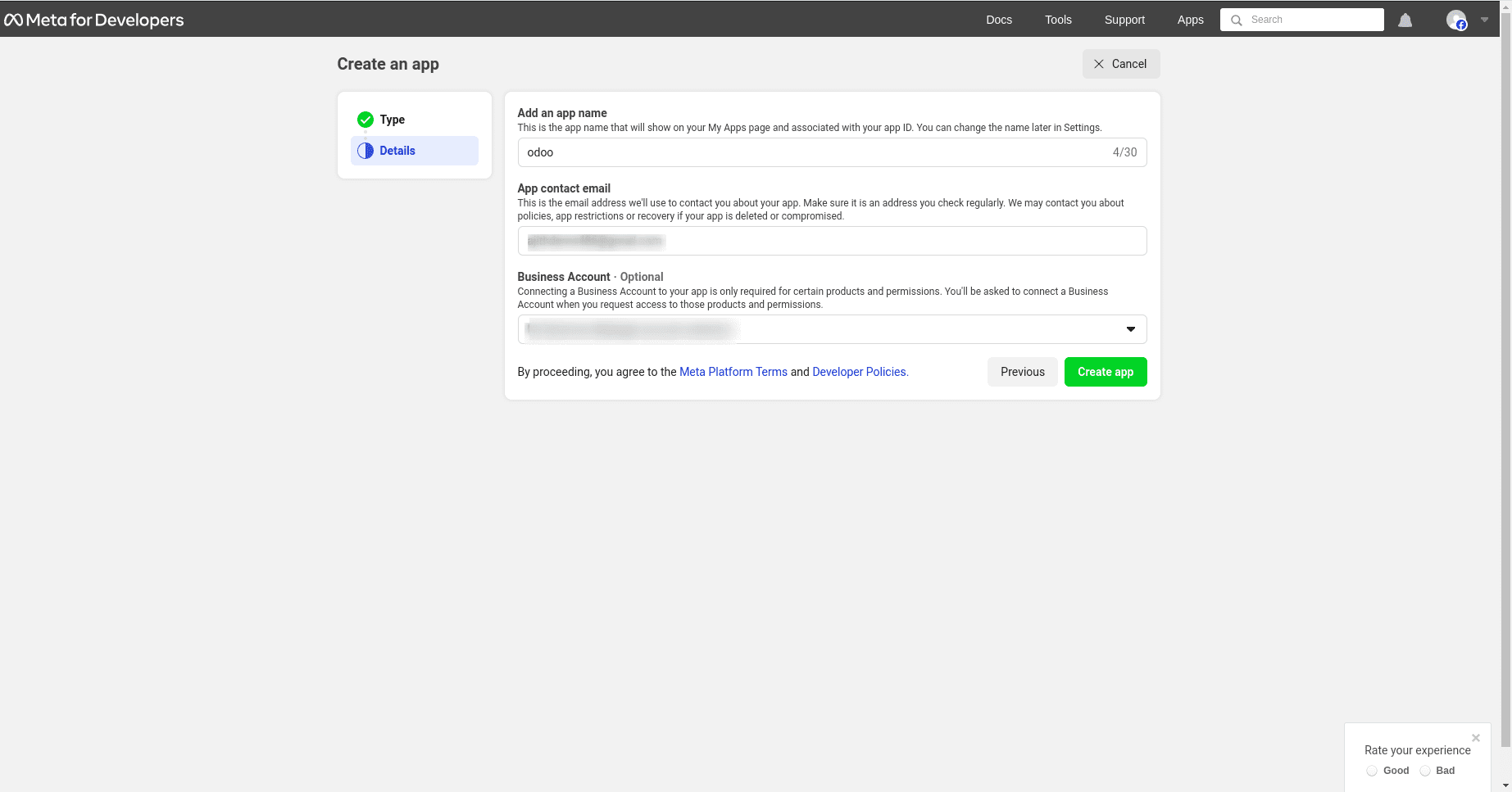
On the Details section of the Create an App process, enter Odoo in the field under the Add an App name label.
Next, enter the developer email address in the field under the App contact email label.
Lastly, use the drop-down menu to set the Business Account—Optional field to the Meta business account profile. To finish, click Create app.
How to Add a WhatsApp Product to the App
After establishing the foundational structure of the app, the next step involves adding a product. To initiate this process, access the Meta app dashboard by navigating to https://developers.facebook.com/apps and selecting the specific app that is currently being configured."
Proceed to the next page and, given that WhatsApp will be utilised, click 'Set up' next to the box corresponding to WhatsApp, positioned towards the bottom.
The page then directs to the WhatsApp Business Platform API configuration page. Use the drop-down menu to select the Meta business to be configured for the Select a Meta Business Account option, and then click Continue to confirm the selection.
Start using the WhatsApp API.
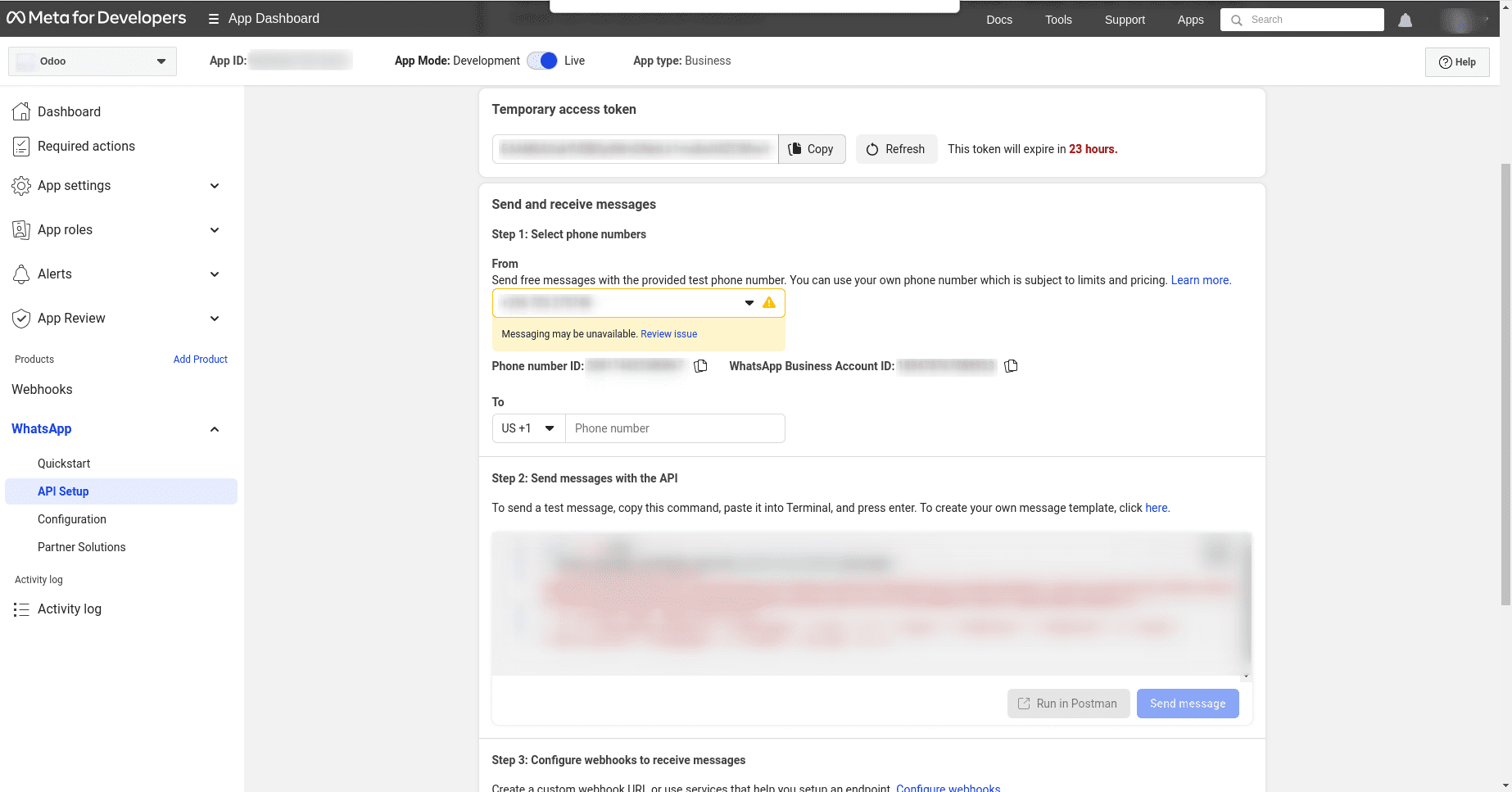
After completing the preceding WhatsApp product wizard and clicking 'Continue,' the browser should redirect to the WhatsApp Quick Start page. This Quick Start page serves as the starting point for configuring the WhatsApp API, which involves adding a phone number and initiating an initial test message.
How to Configure WhatsApp in Odoo
To configure WhatsApp in Odoo, navigate to the settings or configuration section of your Odoo instance. Locate the WhatsApp integration options and input the necessary details, such as your WhatsApp Business API credentials. Ensure that the configuration aligns with your business needs and objectives and save the settings to enable seamless communication via WhatsApp within the Odoo platform.
Name | Meta Console | Odoo Interface |
Phone | Phone number ID | Phone Number ID |
Token | Temporary access token | Access Token |
App ID | App ID | App ID |
Account ID
| WhatsApp Business Account ID | Account ID |
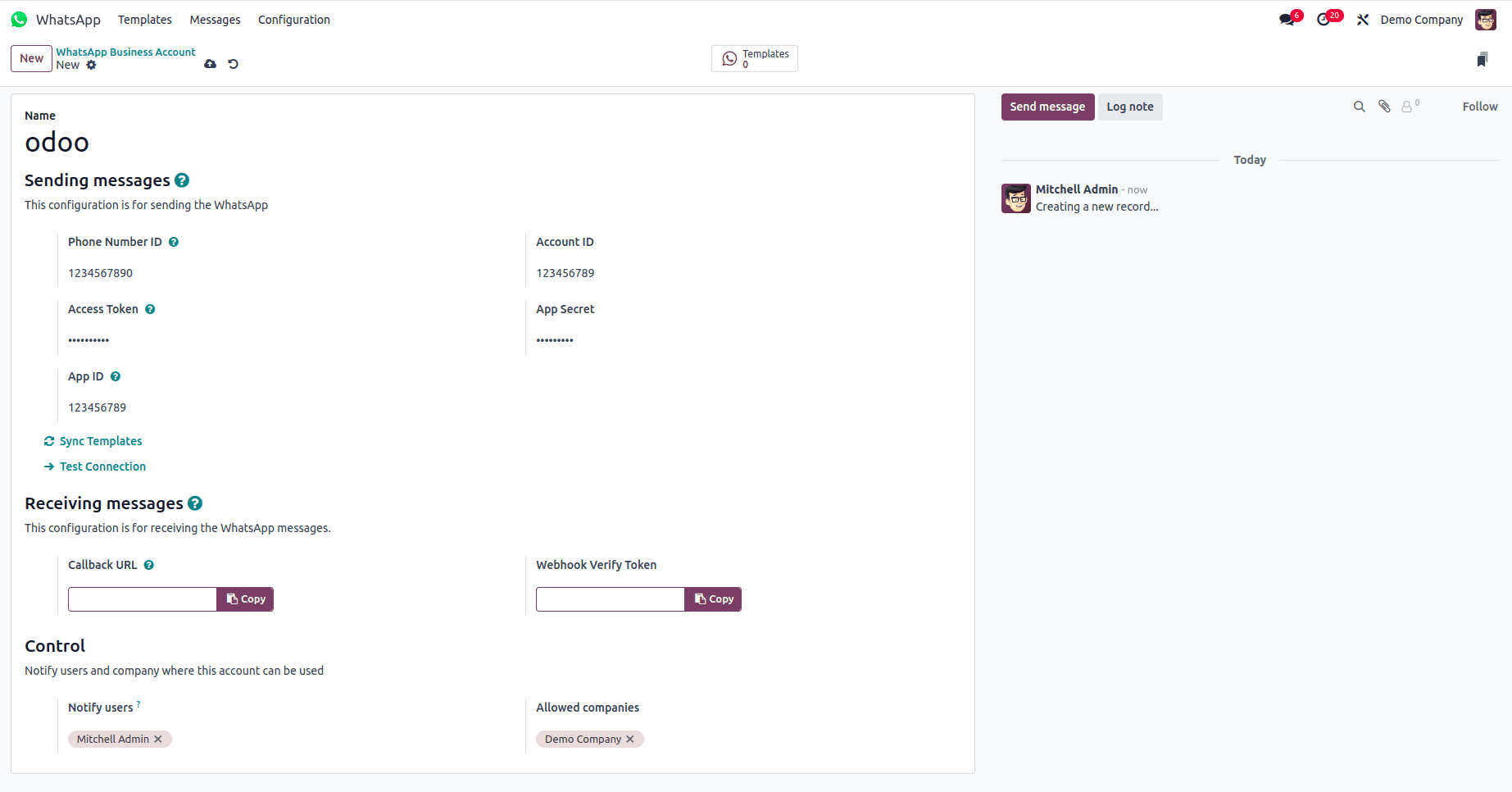
To complete the WhatsApp business account setup in Odoo, click Test Connection. If the configuration is set correctly, a successful message in green will populate the upper-right corner of the dashboard.